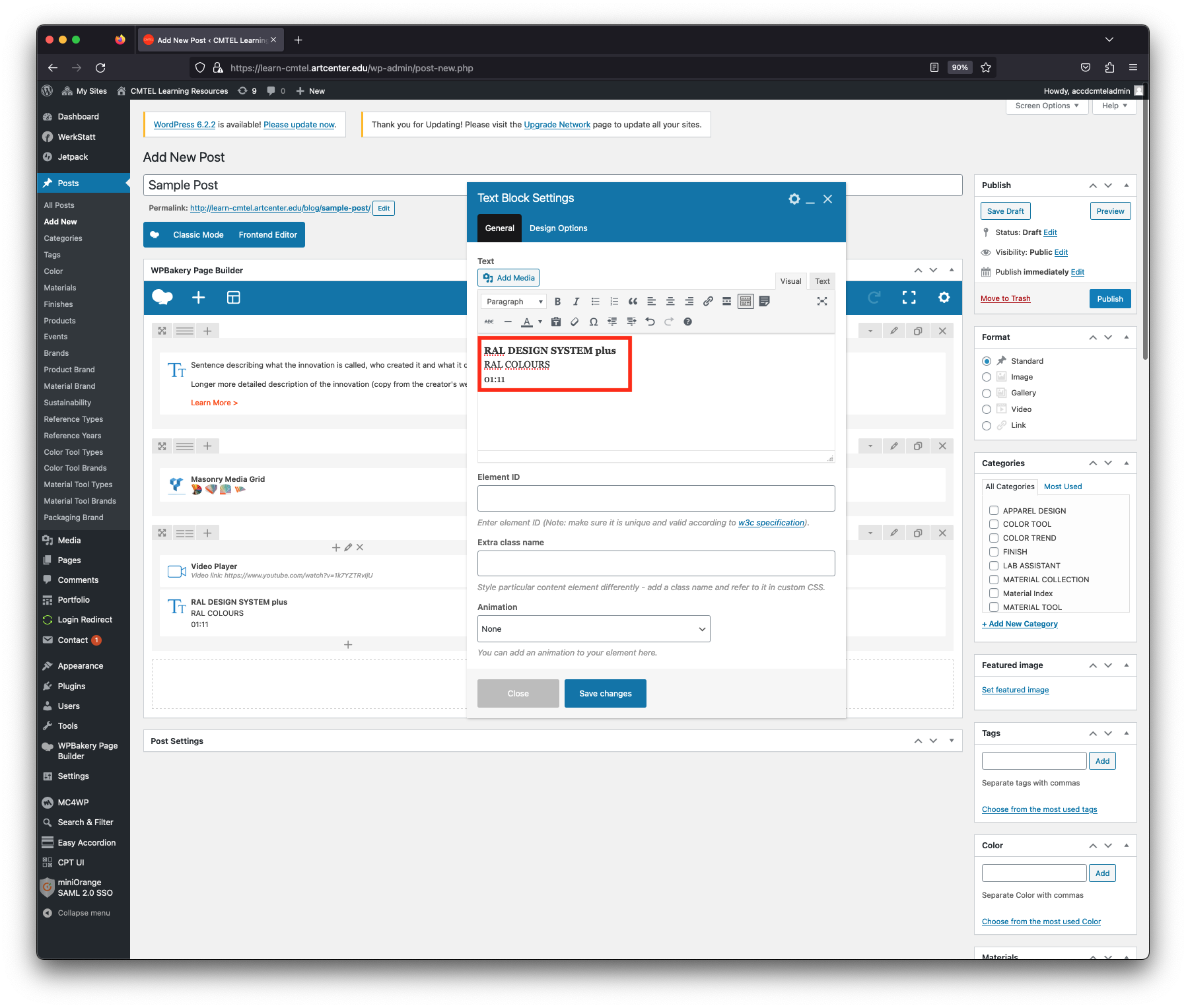


Adding A New Post (continued)
5. Video
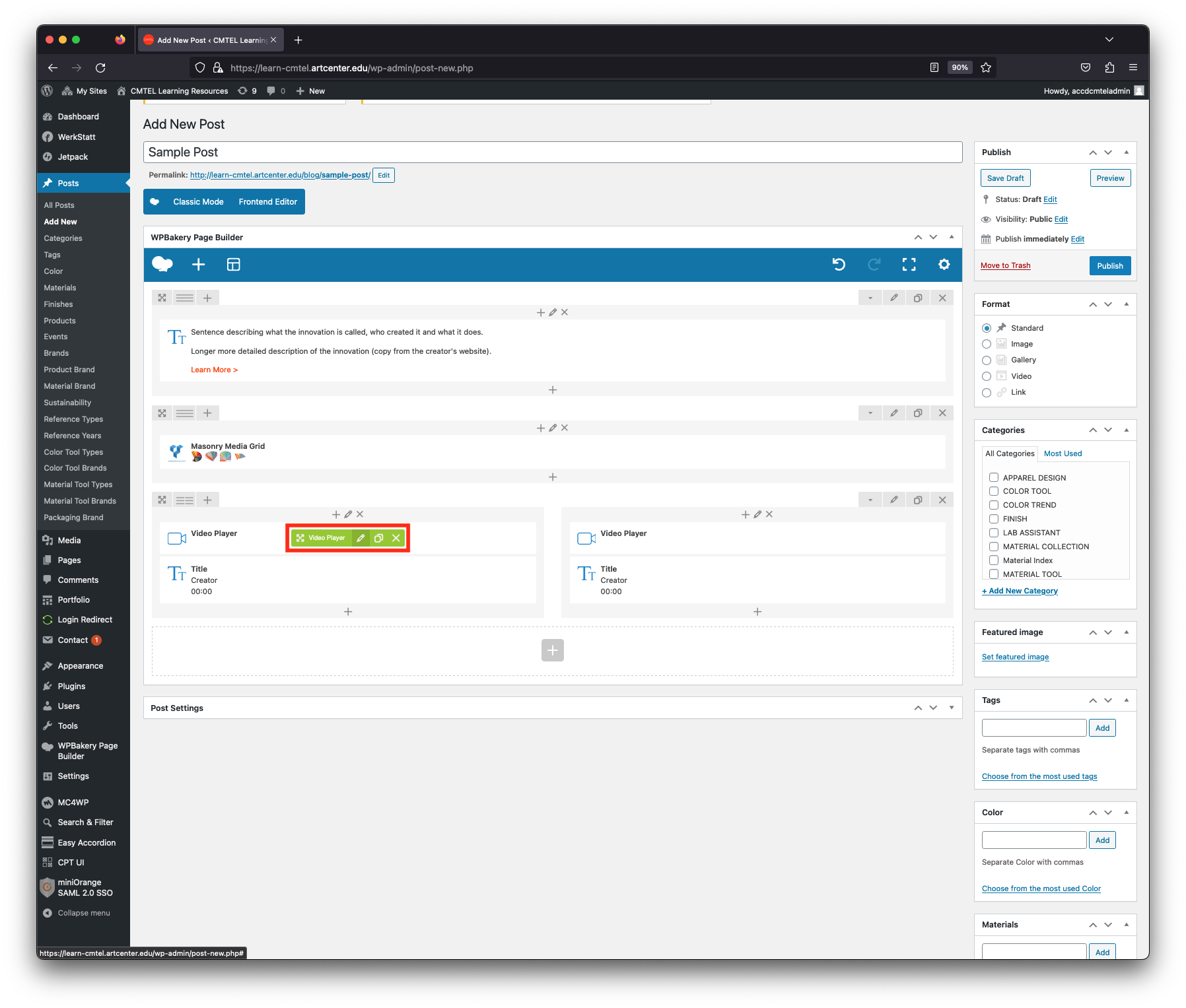
Begin editing this third section by hovering your cursor over the left column area labeled “Video Player” until the green menu pops up (highlighted in red in the image). Select the pencil icon to “Edit Video Player“. Please make sure that you have copied the URLs of the videos of the innovation before proceeding with editing.
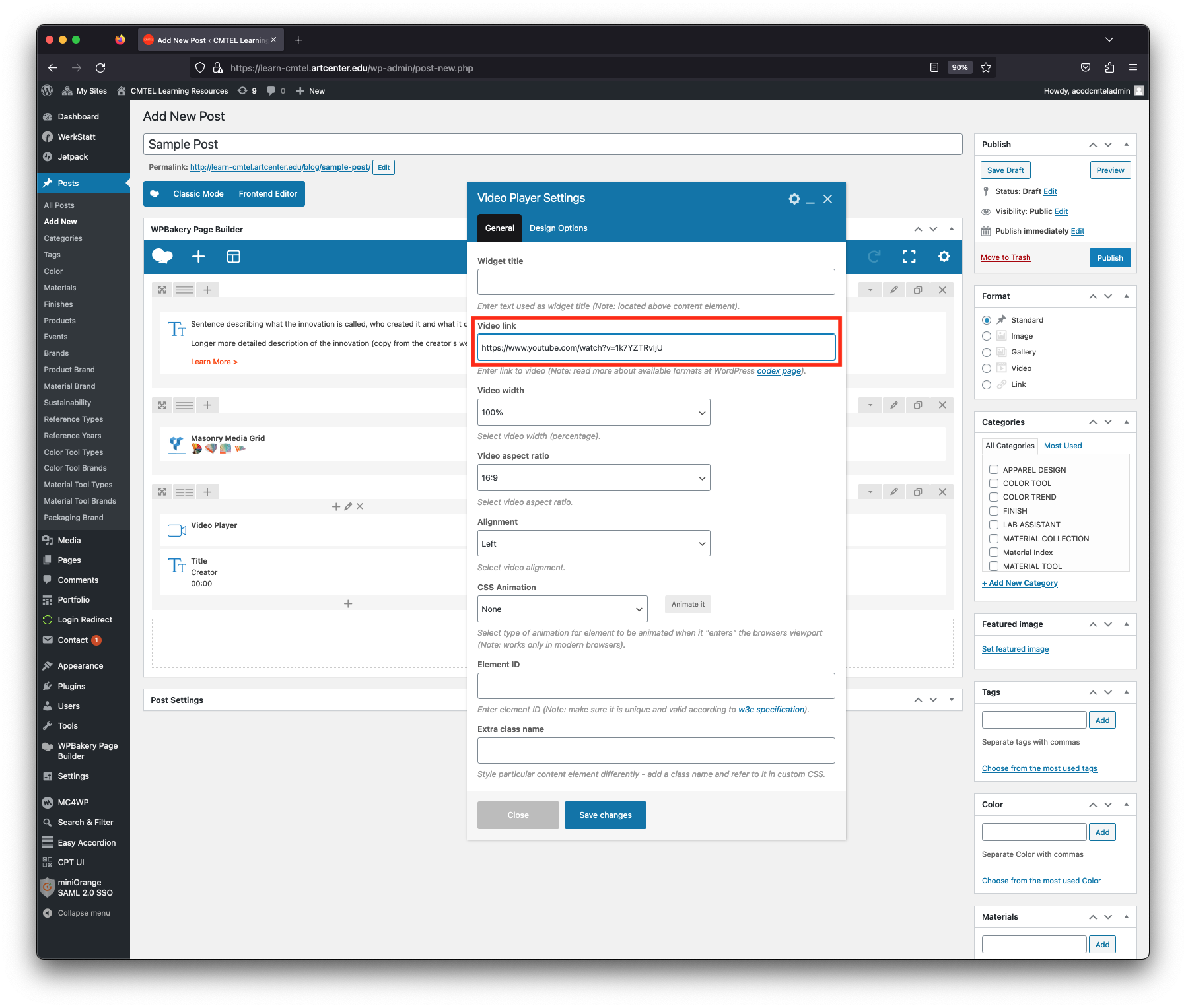
The “Video Player Settings” window will appear and you will embed the video of the innovation. Paste the URL of the video into the field “Video link”. This could be from either YouTube or Vimeo.
After the URL is pasted select the blue “Save changes” button at the bottom.
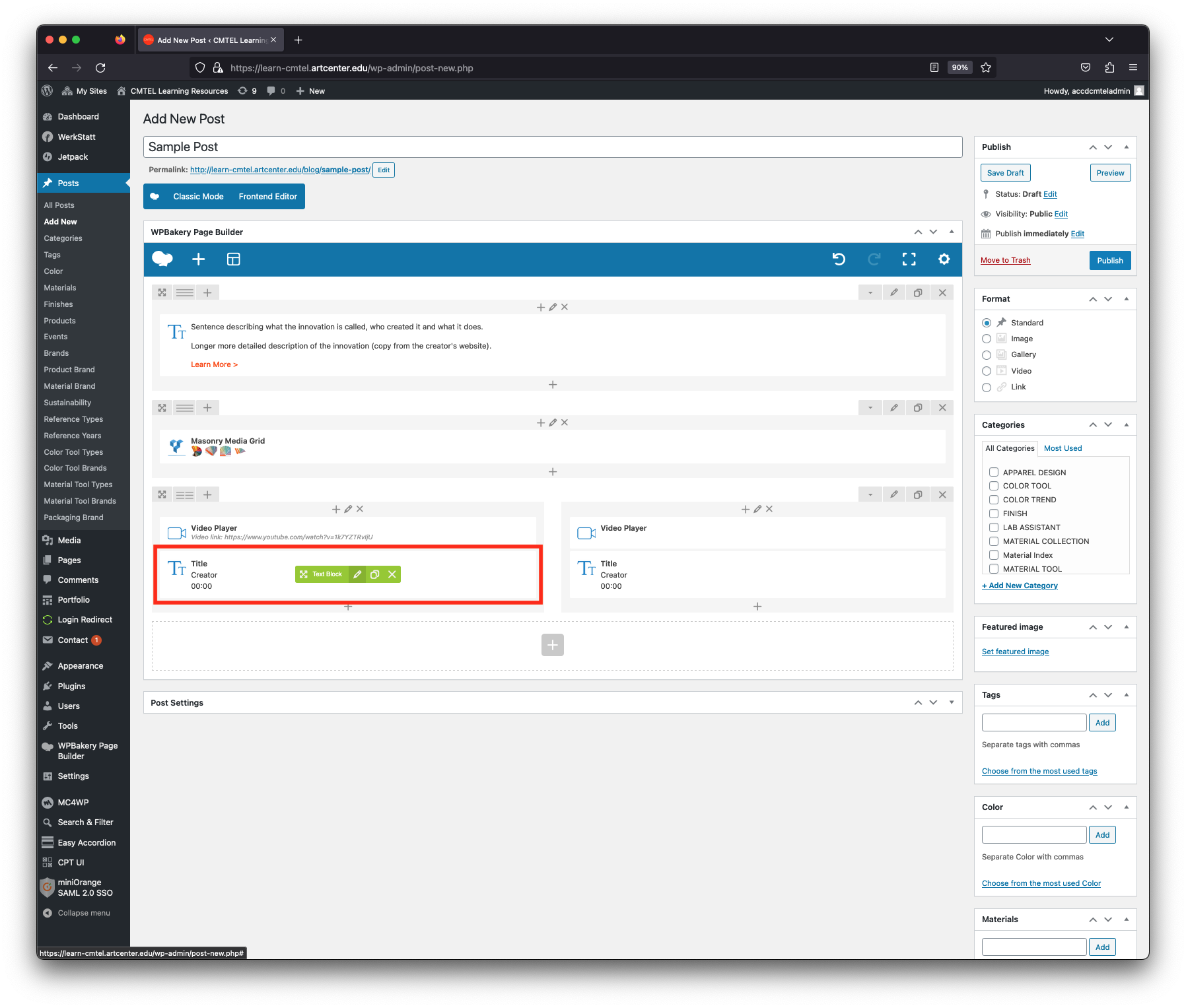
Next, edit the text below by hovering your cursor over the area labeled “Title” until the green menu pops up (highlighted in red in the image). Select the pencil icon to “Edit Text Block“.