
Adding A New Post (continued)
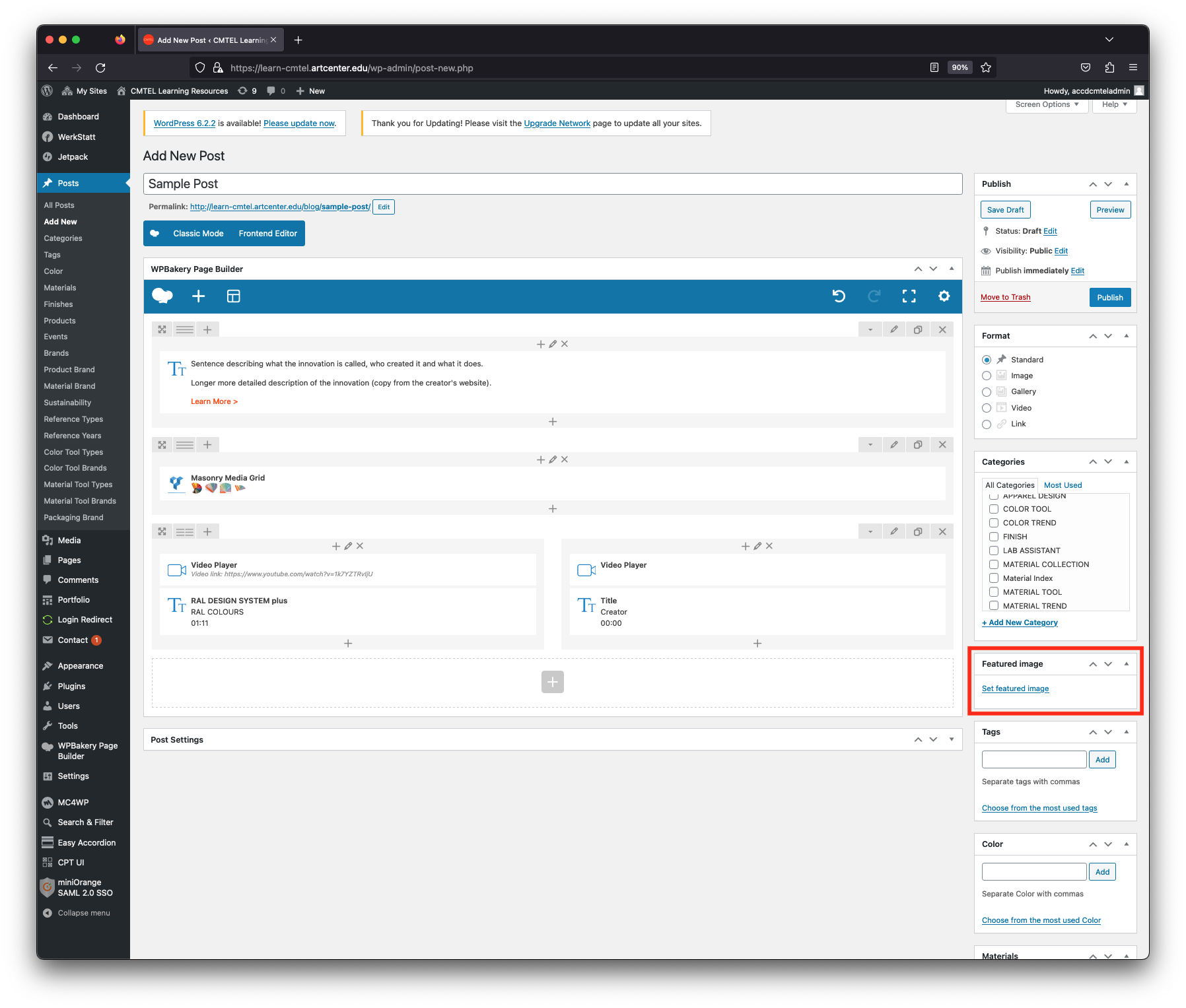
6. Featured Image
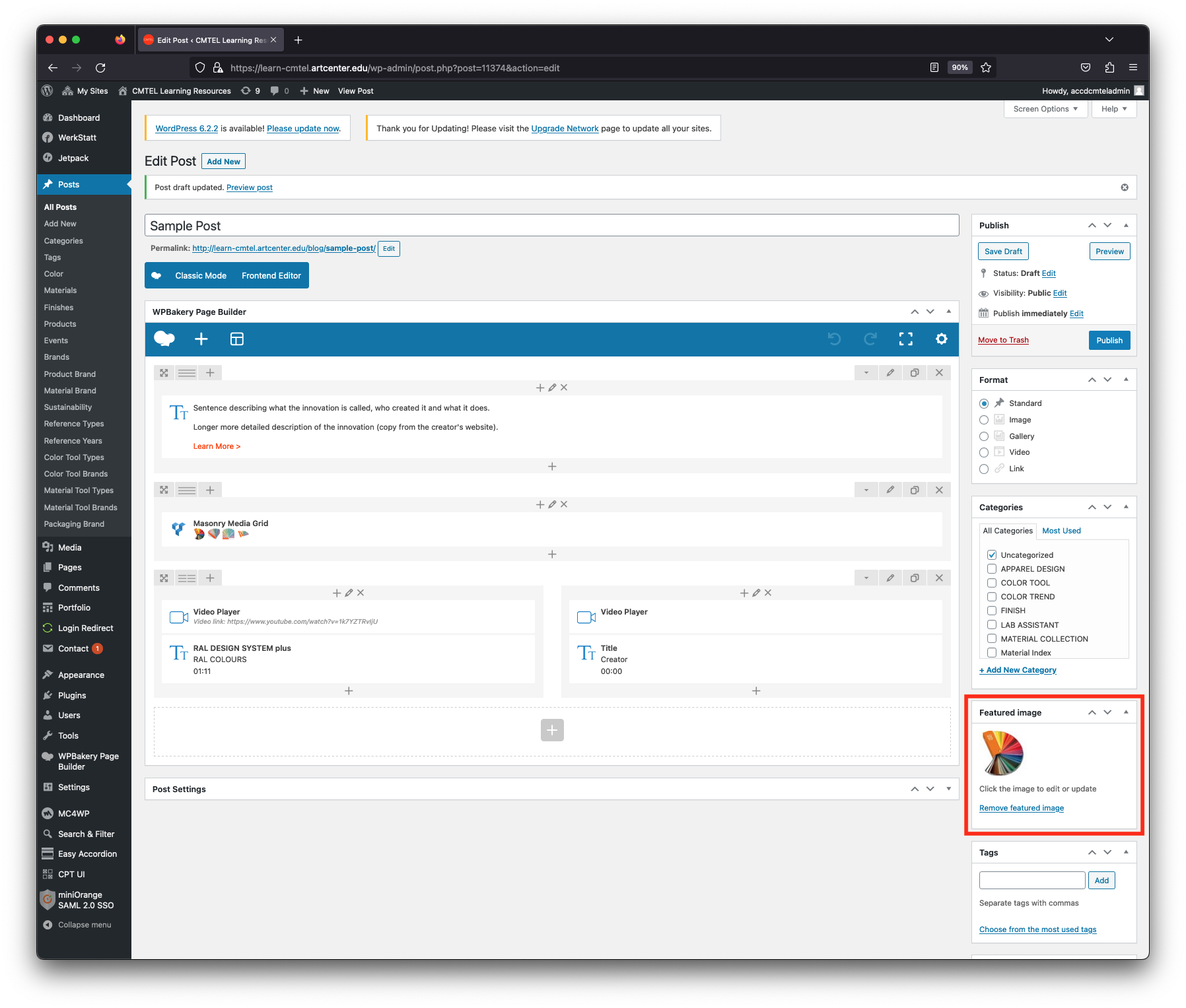
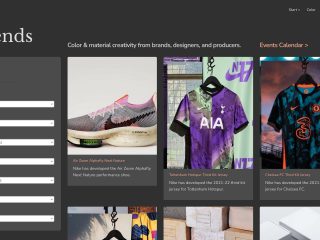
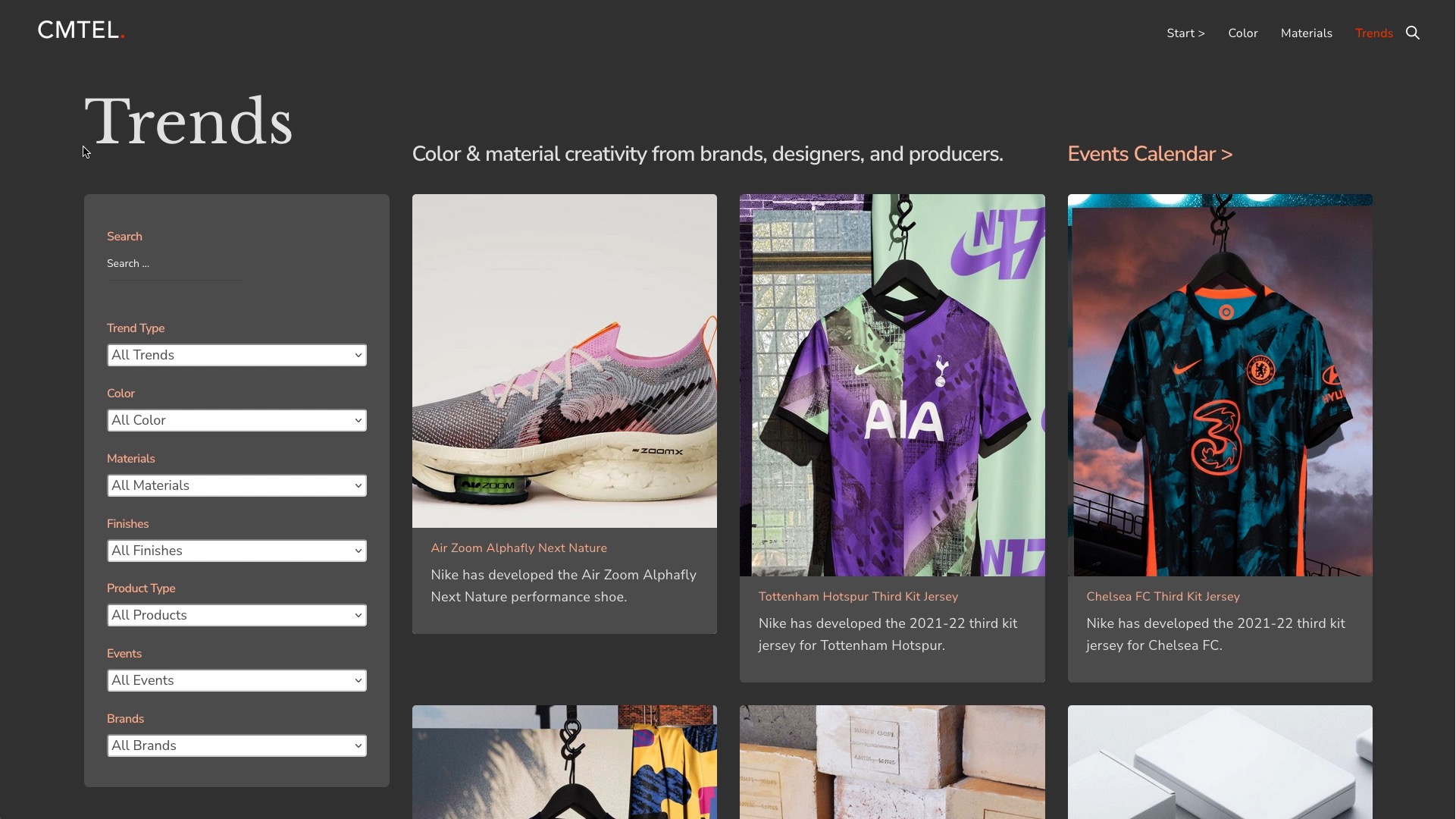
Click the “Set featured image” link under the heading “Featured image” in the right hand column. This will launch the “Featured image” window which displays the Media Library. Choose from one of the images you uploaded for the “Images” section previously. The featured image will be the one displayed on the blog.
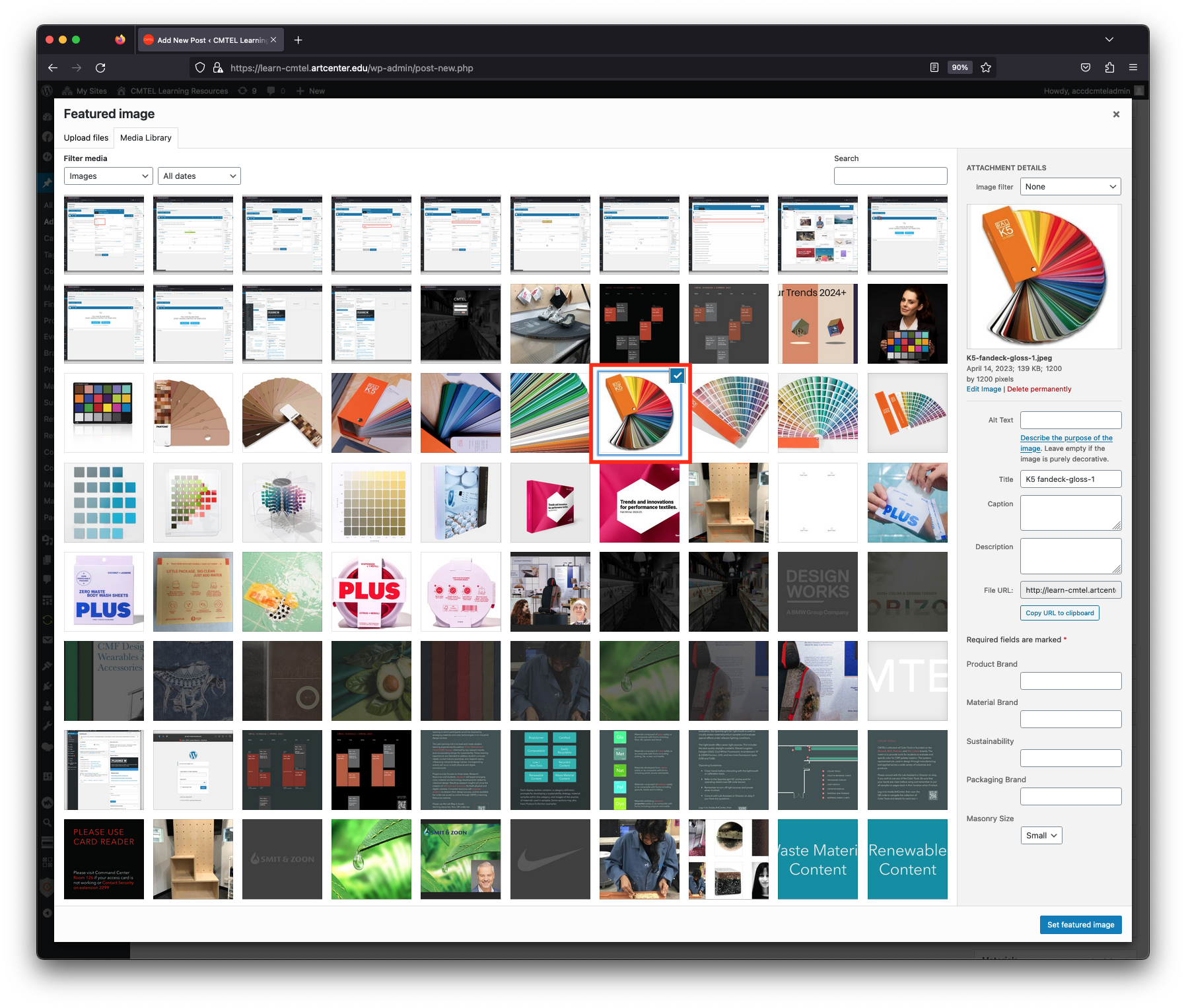
This will launch the “Featured image” window which displays the Media Library. Choose from one of the images you uploaded for the “Images” section previously. The featured image will be the one you want displayed on the blog. Your chosen image will have a blue check mark in the upper right hand corner of the thumbnail. Then select the blue “Set featured image” button at the bottom right of the window.