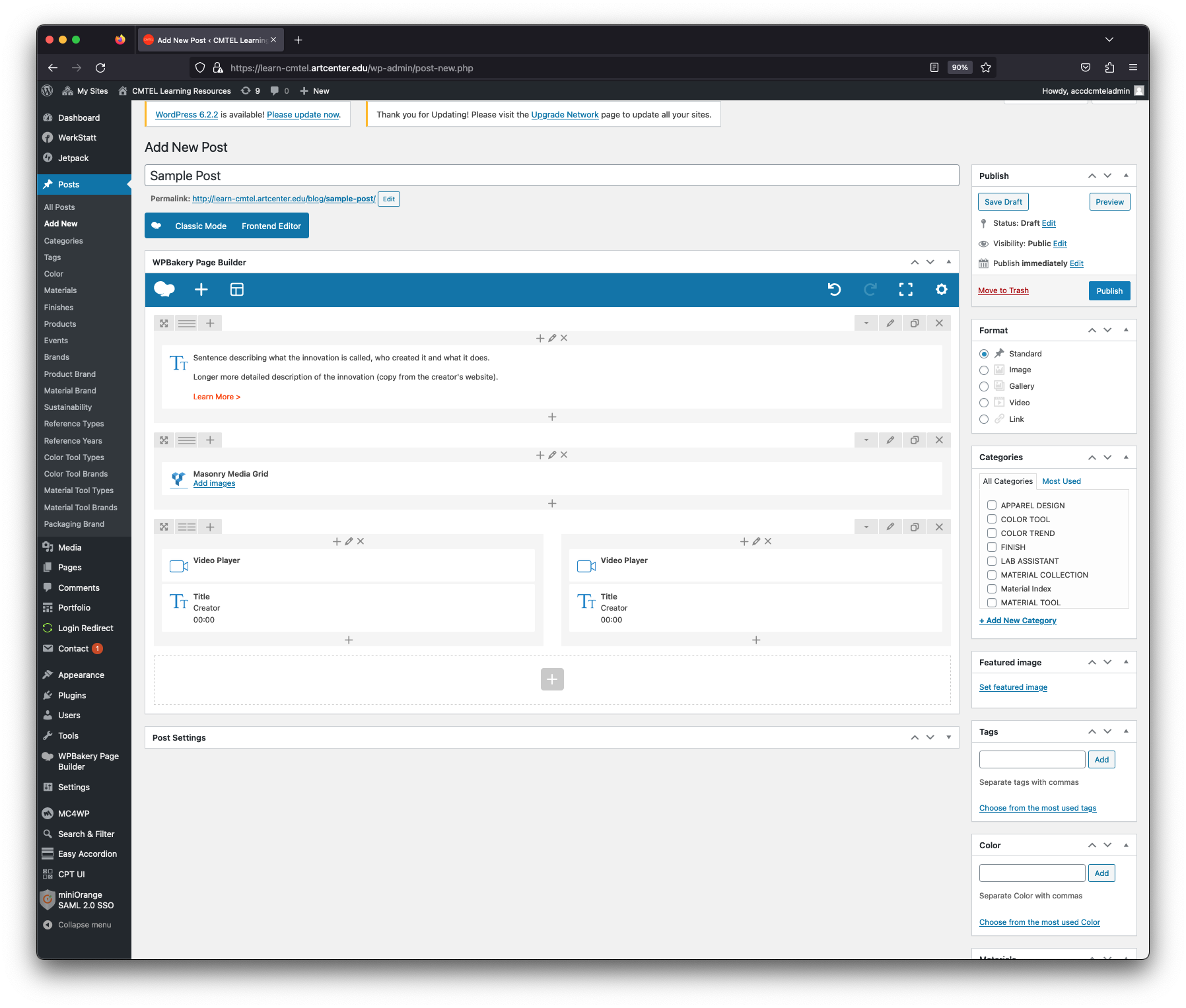


Adding A New Post (continued)
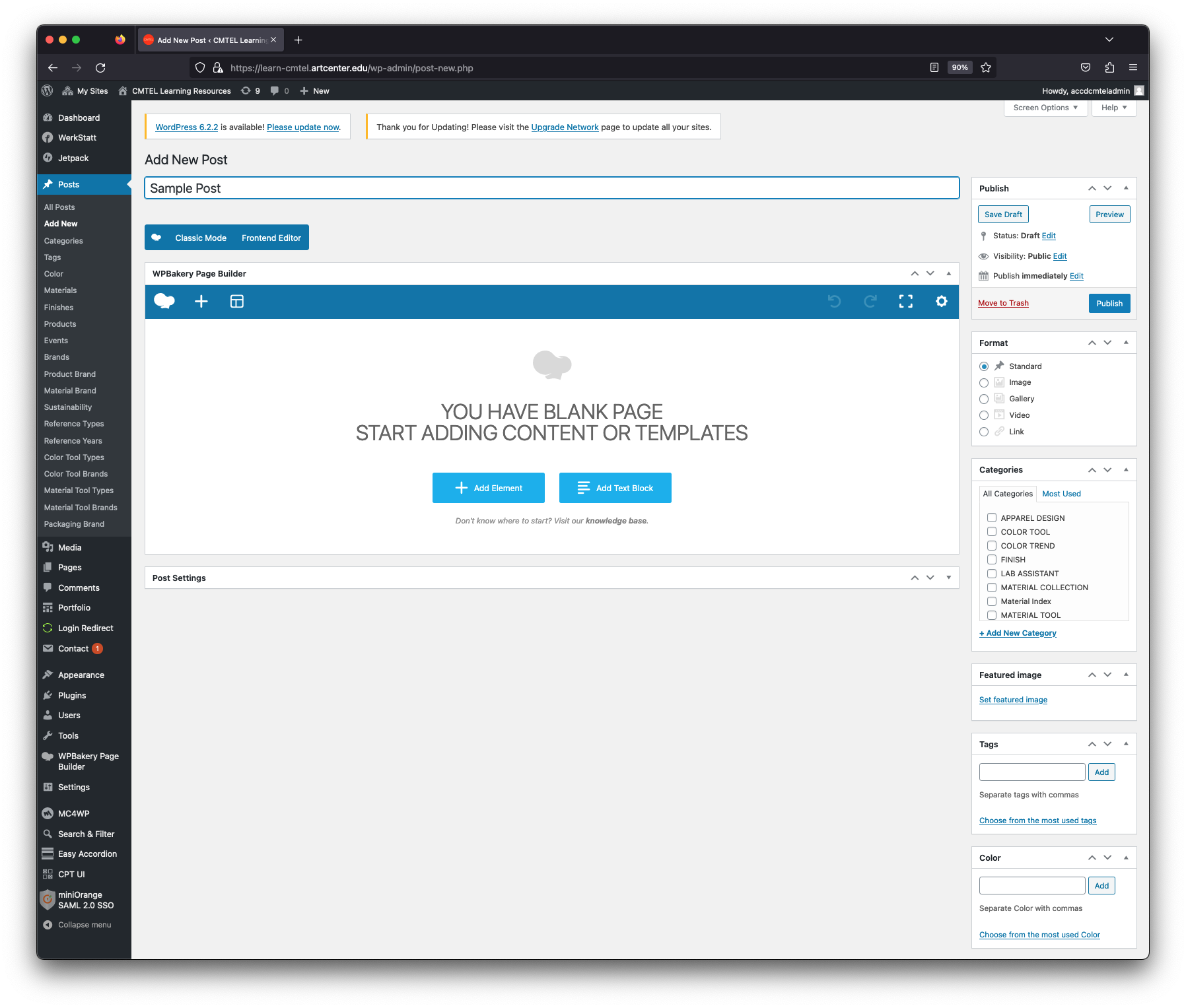
1. Post Title
Enter the name of the innovation. Try to keep the name as short as possible. I used the title “Sample Post” here.
You can save your work by selecting the “Save Draft” button (under the heading “Publish”) at the top right area of the page. Save often to make sure you do not lose your work.
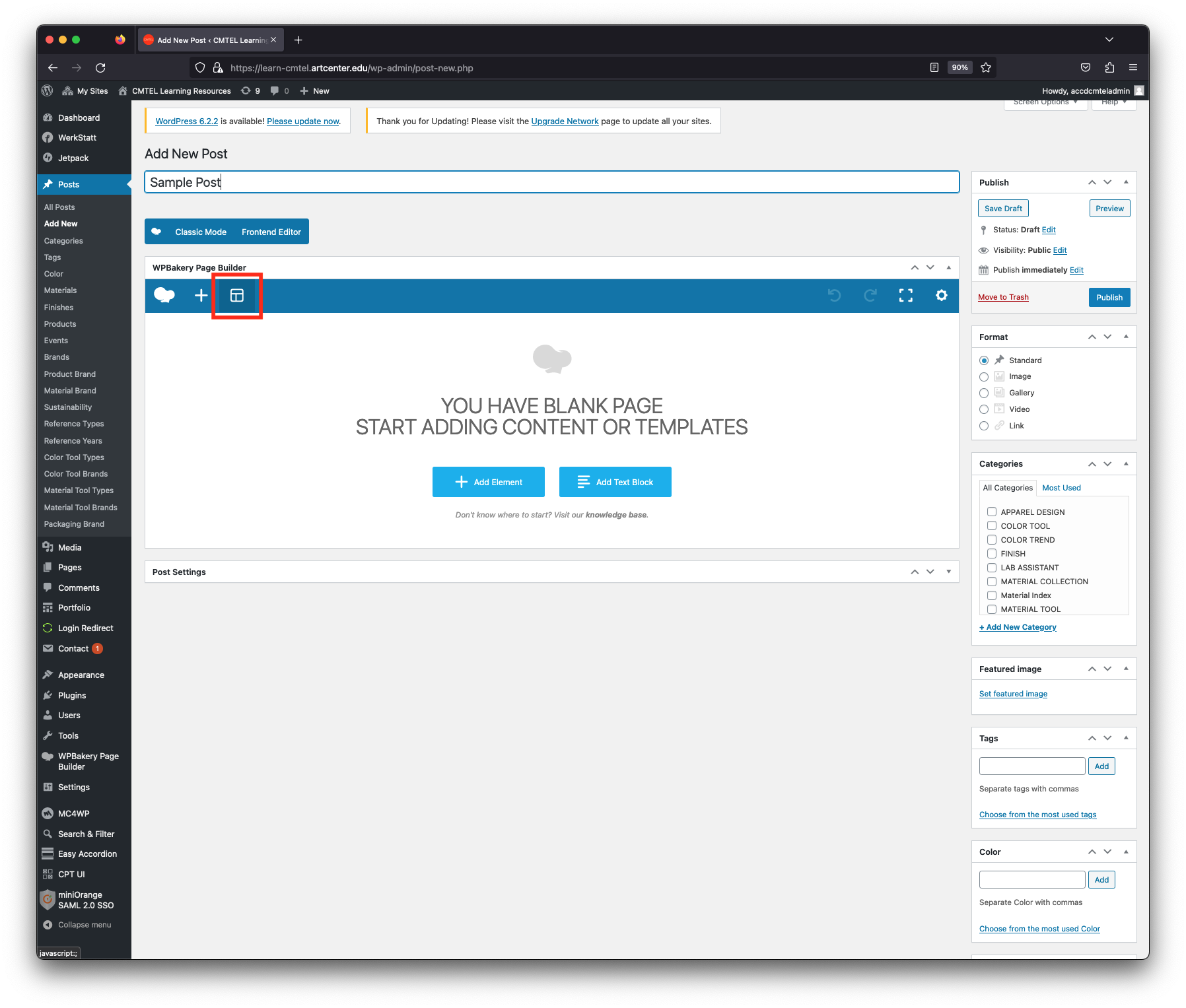
2. Post Template
Under the section “WPBakery Page Builder”, you will see three icons. Select the icon furthest to the right; when you mouse over it the word “Templates” will appear (the icon is highlighted in red in the image).
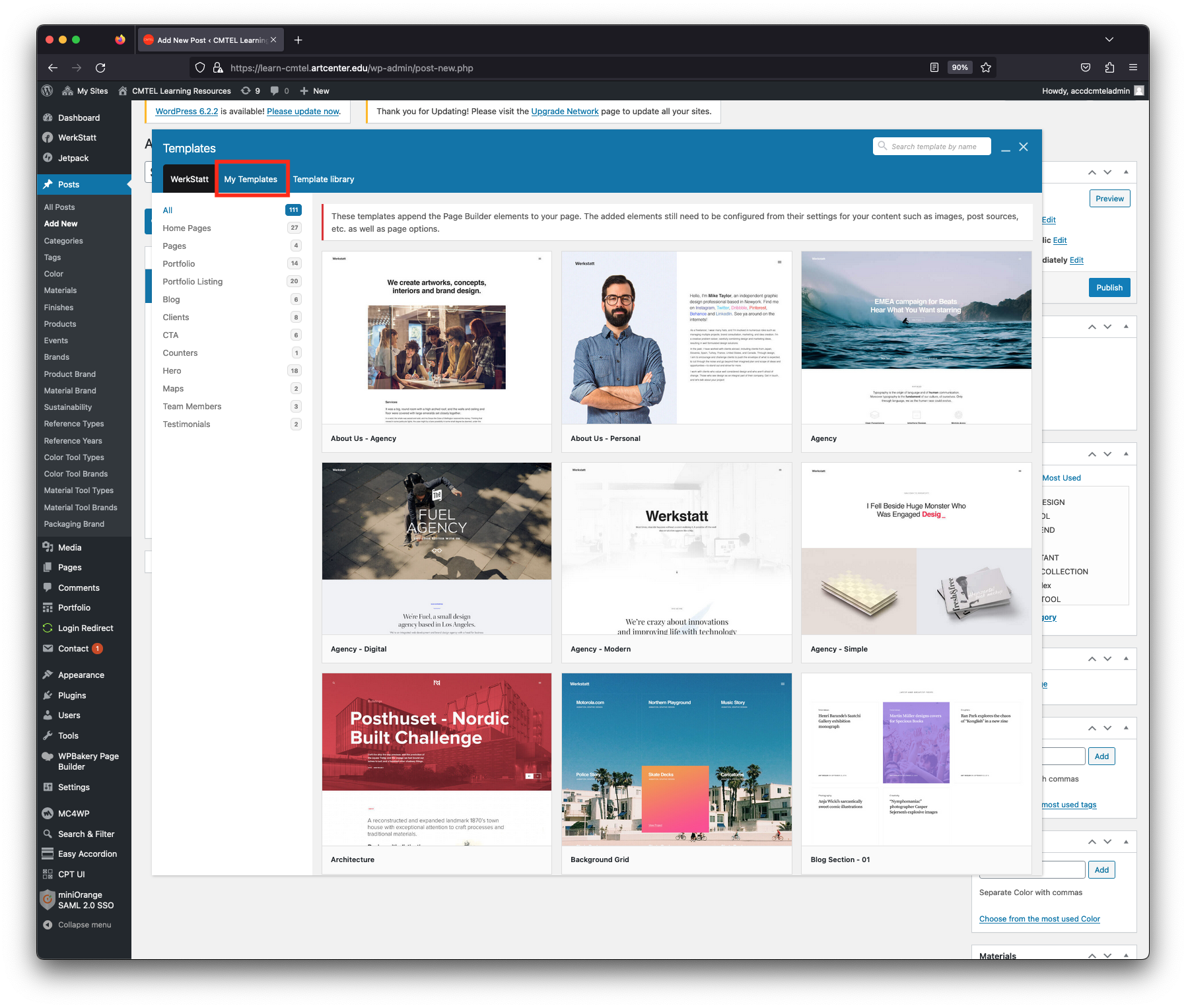
The “Templates” window will appear. Select the “My Templates” option (highlighted in red in the image).
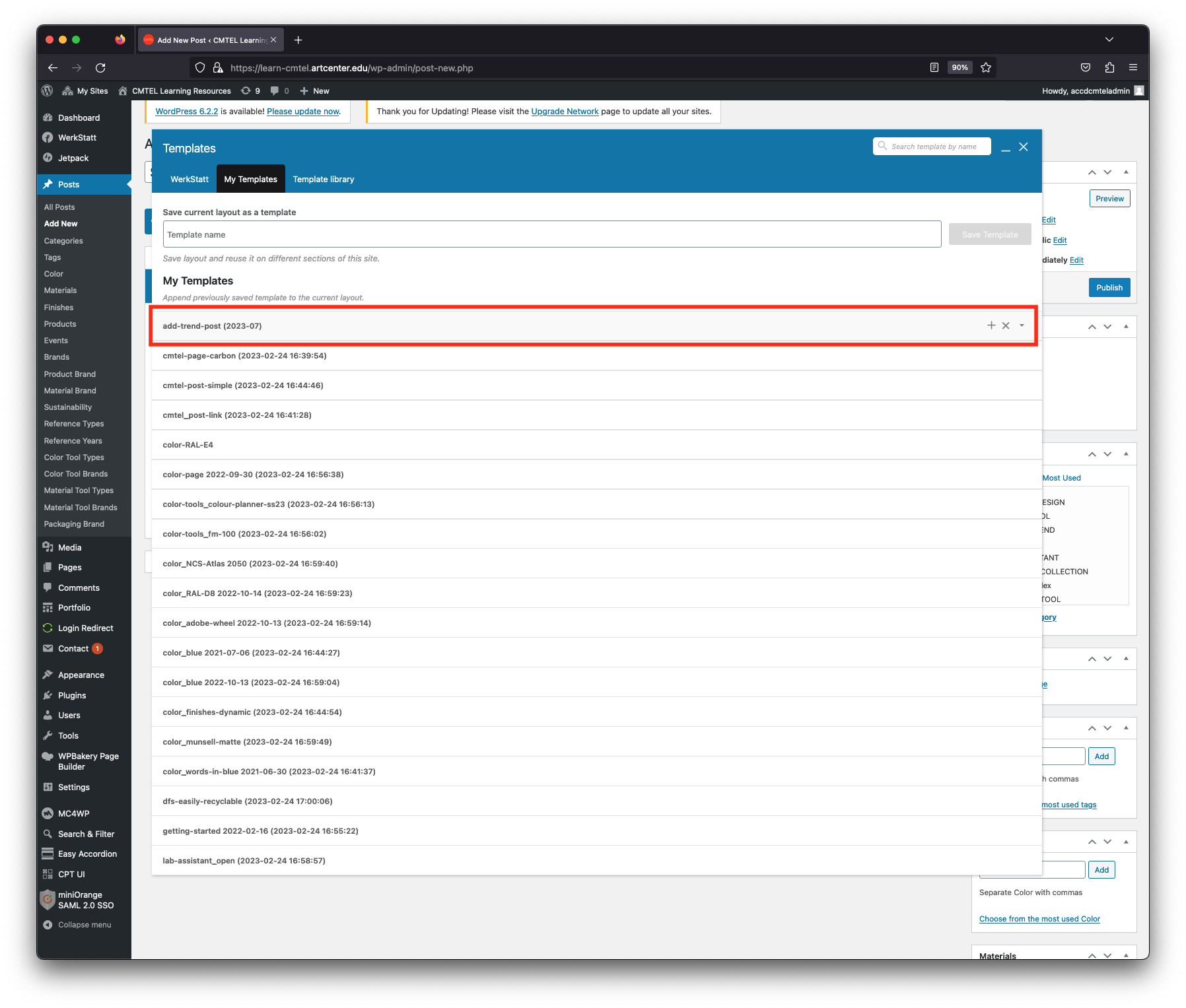
Under the “My Templates” heading, an alphabetical listing of templates will appear. Select the “add-trend-post (2023-07)” option (highlighted in red in the image). This will populate the blank post with all the elements needed.